Contents
Automated verification process
Understanding the Child Safety statuses
Administrators: Managing Volunteer Compliance
Administrators: Viewing the Child Safety Dashboard
Administrators: Who specifically do I need to chase and how do I find them quickly?
Automated verification process
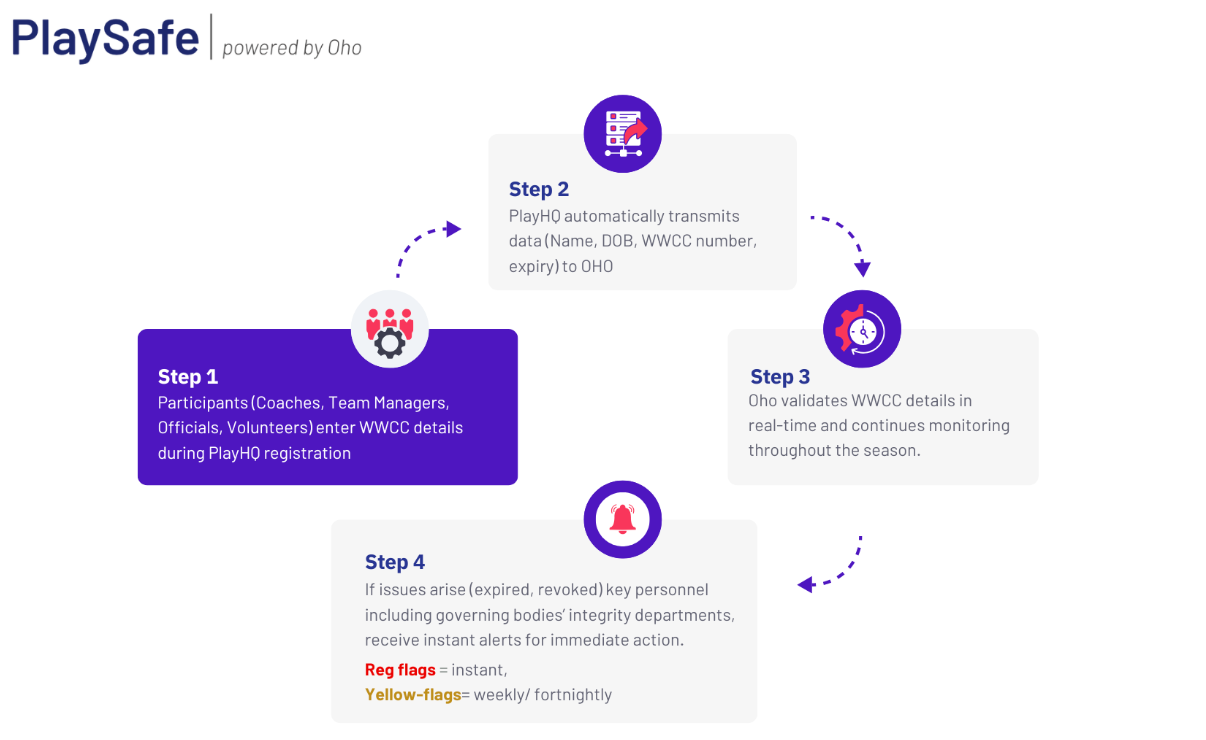
When participants register for select positions of trust, being Coach, Team Manager, Volunteer or Official.
During registration
- Participants provide their WWCC details (number, expiry date, state)
- PlaySafe instantly/batch (depending on State - ACT & NSW implements batch checking) validates this information against the specific government database connected to Oho
-
Validation results determine the Volunteers Child Safety eligibility status
- Valid
- Pending
- No Status
Ongoing Monitoring
- PlaySafe conducts weekly re-checks of all WWCCs, or batch checks in relevant states/territories
- System automatically detects and escalates to the governing bodies child safety team for revocations or serious compliance breaches.
- Participant's Child Safety status updates automatically based on the ongoing monitoring checks
Understanding the Child Safety statuses
PlaySafe uses specific status indicators to show WWCC compliance:
- VALID - WWCC has been verified successfully
- PENDING - WWCC is awaiting validation or has discrepancies
- EXPIRED - WWCC has expired and needs renewal
- EXPIRING SOON - WWCC will expire within 6 weeks
- NO STATUS - The participant has not entered their WWCC details yet
⚠️ Important: Participants with "Pending" registration status can still be added to teamsheets for Winter 2026.
Status changes are reflected in real-time within a participant's profile, both in the public and admin portal.
Administrators: Managing Volunteers Compliance
Viewing a Volunteers Child Safety status
Access in Participant Profile in the admin portal
- Navigate to Participants in the Admin Portal
- Search for and select the Volunteer you wish to view
- Find the Child Safety section showing the participant's current status (see image below)
Administrators: Viewing the Child Safety Dashboard
- Navigate to Dashboard> Child Safety
-
Set the Data Filter parameters you wish to view details for.
- Example. 1st December 2025 to now
- This shows very clearly a summary of each status - Valid, Pending (Need to fix) and No Status (those you need to chase)
Administrators: Who specifically do I need to chase and how do I find them quickly?
- Scroll down Child Safety Dashboard
- Filter the volunteers you want to view specifically eg. Pending
- The following fields will display for each individual who falls under this status
- Navigate to the profile link directly by click on the Paperclip if you wish to look closer
-
Or if you want to send out a bulk email, you can export the list by clicking on the down arrow
Exemptions
Administrators: Approving or declining an exemption
- Check the Child Safety Dashboard and navigate to anyone with an Exemption
- Click on Participant link URL
- Click the expand Registration record arrow to expand the section
- Navigate down to Child Safety Exemption Requested
- Click on Review
- Review Exemption Request and then select from the drop down list Approved or Declined> Add a reason
- Click Save
- Exemption Requested details display and the status of the review is visible.
- If the Exemption is approved, the Child Safety Tile on the profile will not display.
- In the event the exemption has been incorrectly applied> Select Declined & add a reason> Click on Save
- The participants' profile record will display details of the reason for the Declined Status being applied.
- The Child Safety Tile will show in this situation however it will display No Status
- The Volunteer should be directed to login to their Participant Profile at playhq.com > go to the Profile Tab
- Scroll down until they reach the Child Safety section
- Click Edit to Add the WWC details
- OHO will validate the credentials entered
- The Admin portal Child Safety tab will update with the new status immediately